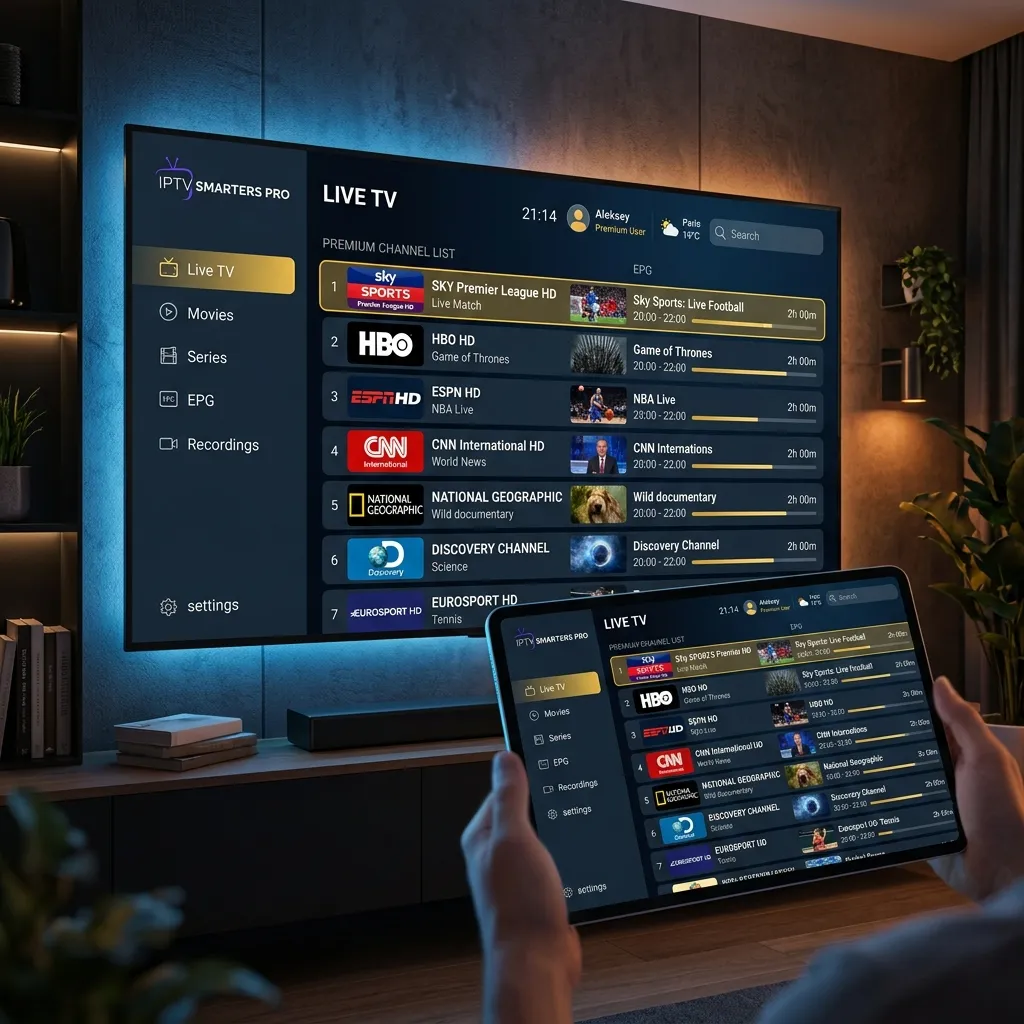
Smart TV IPTV Setup: Complete Step-by-Step Guide
Learn how to set up IPTV on any Smart TV brand. Covers Samsung, LG, Sony, TCL, and more with detailed instructions.
Setting Up IPTV on Your Smart TV
Modern Smart TVs can run IPTV apps directly - no external device needed! Here's how to set up ZeroBuffering on every major TV brand.
Samsung Smart TV (Tizen OS)
Method 1: Smart IPTV App
Method 2: Web Browser
LG Smart TV (webOS)
Using the LG Content Store:
Pro Tip: LG's Magic Remote makes navigation much easier. Consider upgrading if you have an older remote.
Sony Smart TV (Android TV / Google TV)
Easiest Setup:
Sony Android TVs offer the most flexibility as they support nearly all IPTV apps available.
TCL / Hisense (Roku TV or Android)
For Roku TV Models:
Roku doesn't support traditional IPTV apps, but you can:
For Android TV Models:
Follow the Sony Android TV instructions above.
General Setup Tips
Before You Start:
Optimal Settings:
Troubleshooting Common Issues
App won't install:
Buffering on Smart TV:
No sound:
When to Use External Devices
Sometimes a dedicated streaming device provides better performance:
Consider Firestick/Android Box if:
Stick with Smart TV apps if:
The ZeroBuffering Advantage
Our service is tested and optimized for all major Smart TV platforms. Our support team can provide:
Need help? Contact our 24/7 support via WhatsApp for personalized setup assistance.
Stop Buffering Forever
Enter your email to receive our Anti-Throttle Ultimate Checklist and a secret discount code for ZeroBuffering.